
Revit Type Catalogs
Type Catalogs let users pick only the family types they need instead of loading every type into a project, which keeps model size smaller. A Type Catalog is a .txt file with the exact same base name as the Revit family (.rfa), stored in the same folder.
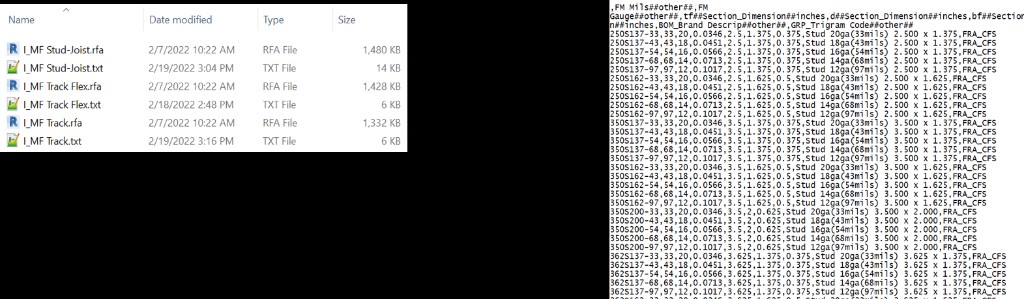
.rfa with a matching .txt. The first line defines parameters as
Name##Type##Unit; each following row is one family type (type name in the first column).
Workflow
- Create a Revit family with parameters and a few example types.
- Export a Type Catalog from Revit to generate the initial
.txtformat. - Open the file in Family Type Manager Type Catalog, edit, and add types.
- Export and overwrite the original
.txtnext to the family (or save a new catalog name when creating a new file).
General notes
- Revit rounds values based on project settings when types are loaded.
- Catalog column headers must match Revit parameter types using
Name##TYPE##UNIT. - Works with any Revit language and version year when headers are correct for that version.
What you can do in FTM
- Multi-level sorting and filtering before export
- Mass edit rows and columns; prefix/suffix; find and replace
- Convert between imperial and metric; feet-inch helpers
- Create master catalogs, backups, and single / multi-default catalogs
- Error-check type names, headers, and invalid Revit or database characters
Lookup Tables
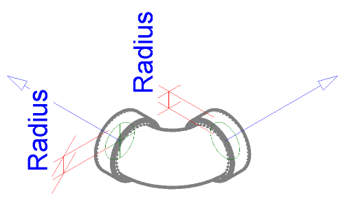
Lookup Tables are external .csv files managed from the family via Manage Lookup Tables. They are common for pipe and conduit families, but you can use them with almost any category to drive instance (or type) values from matching criteria.

Lookup Table Name or
isTable…). Formulas reference that name in size_lookup.
The size_lookup function
Revit fills a parameter by searching the CSV left to right for matching criteria, then returning a column value.
result = size_lookup(LookupTableName, LookupColumn, DefaultIfNotFound, LookupValue1, LookupValue2, …, LookupValueN)
- LookupTableName — parameter (or quoted name) that points at the imported CSV
- LookupColumn — header of the column to return (in quotes)
- DefaultIfNotFound — fallback when no row matches (number or text)
- LookupValue1…N — one or more criteria, matched against CSV columns in order (after the blank first column)
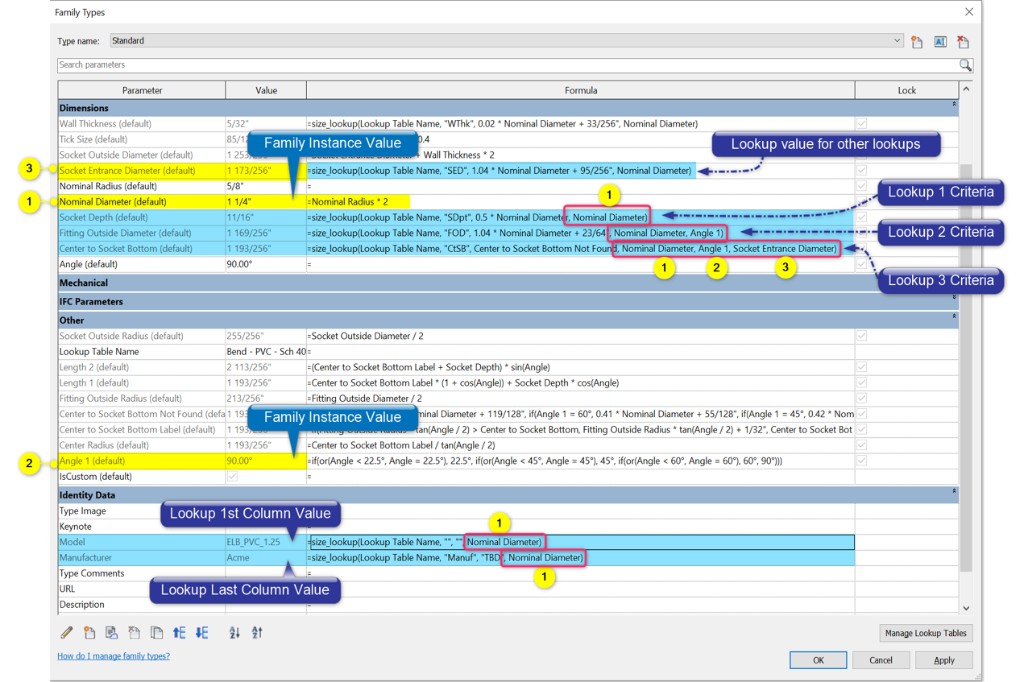
Criteria patterns
- One criterion — e.g. Socket Depth from Nominal Diameter alone
- Two criteria — e.g. Fitting Outside Diameter from Nominal Diameter + Angle
- Three or more — e.g. Center to Socket Bottom from Diameter + Angle + Socket Entrance Diameter
- Identity data — Model / Manufacturer (and similar) can use the same lookups
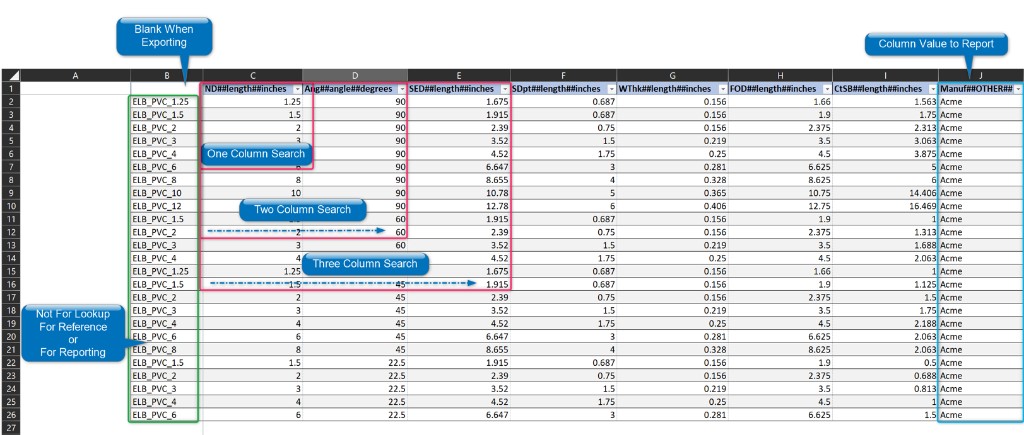
CSV format & search columns
Best practices
- Name the family parameter for the table clearly (e.g.
Lookup Table Name,isTableSizes). - Headers must use
ParameterName##ParameterType##ParameterUnits. - Examples:
LENGTH##LENGTH##INCHES,ANGLE##ANGLE##DEGREES,Manuf##OTHER##(text). - Keep the first column blank when exporting for Revit; put descriptions or sort keys there if needed.
- Import / export / delete tables from Revit’s Manage Lookup Tables dialog.
Formula samples
Numeric
size_lookup(BOM_Catalog, "Weight", 0, Model, BOM_MPN)
Text
size_lookup(BOM_Catalog, "Description", " ", Model, BOM_MPN)
Conditional
IF(id > 0, size_lookup(LookupTableName, LookupColumn, DefaultIfNotFound, LookupValue1, …), 0)